# Card Management

# Edit the text fields of a vcard

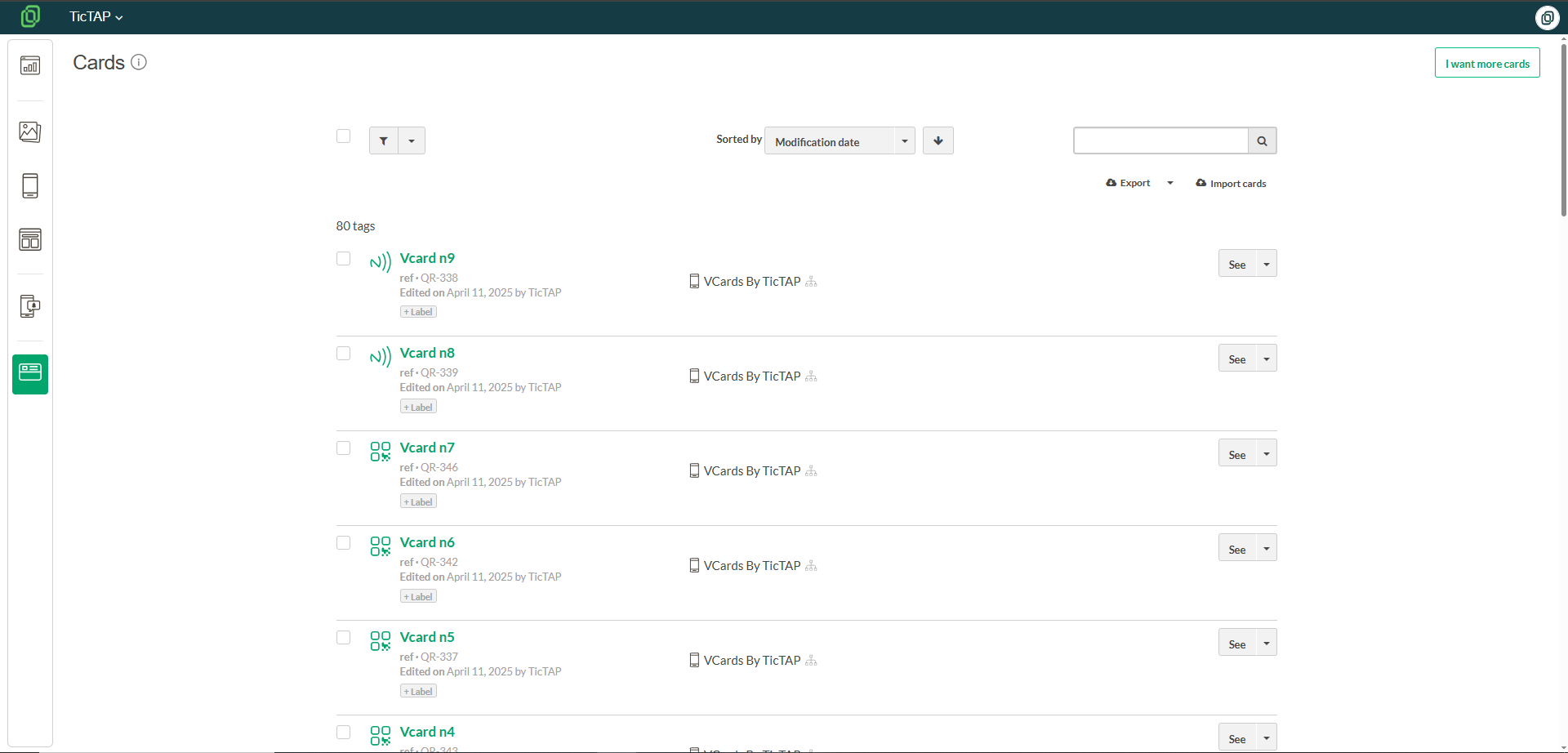
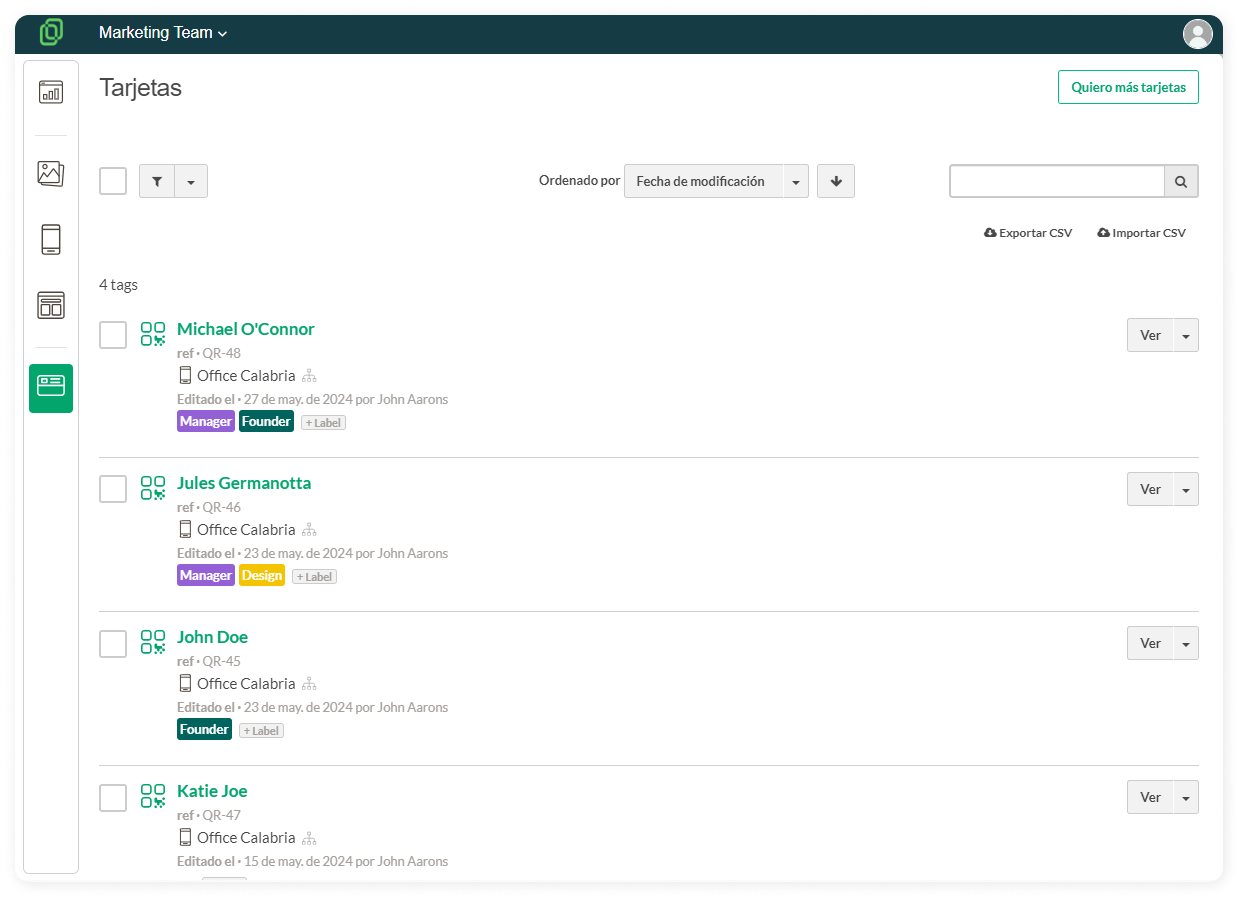
The **Cards** section in the left sidebar menu is where you can view, edit, and manage all your team's cards. To edit card details, such as **changing the position** or a **mobile number**, follow these steps:

1. Locate the name of the person you want from the **card list**   
       
    [![Frame 23647.png](https://help.tictapcards.com/uploads/images/gallery/2024-06/scaled-1680-/KX5lLQgsv7YtLzRY-frame-23647.png)](https://help.tictapcards.com/uploads/images/gallery/2024-06/KX5lLQgsv7YtLzRY-frame-23647.png)
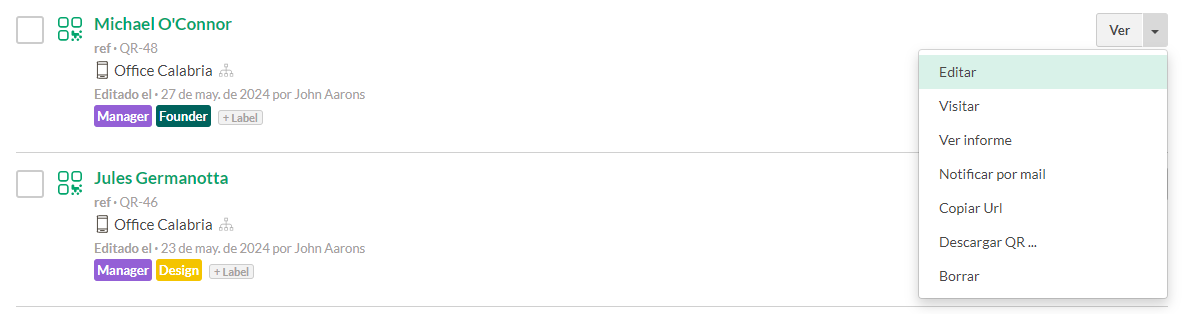
2. In the dropdown menu on the right-hand side, click on **Edit**   
       
    [![image 2.png](https://help.tictapcards.com/uploads/images/gallery/2024-06/scaled-1680-/eUe37uA1JTIwL7d5-image-2.png)](https://help.tictapcards.com/uploads/images/gallery/2024-06/eUe37uA1JTIwL7d5-image-2.png)
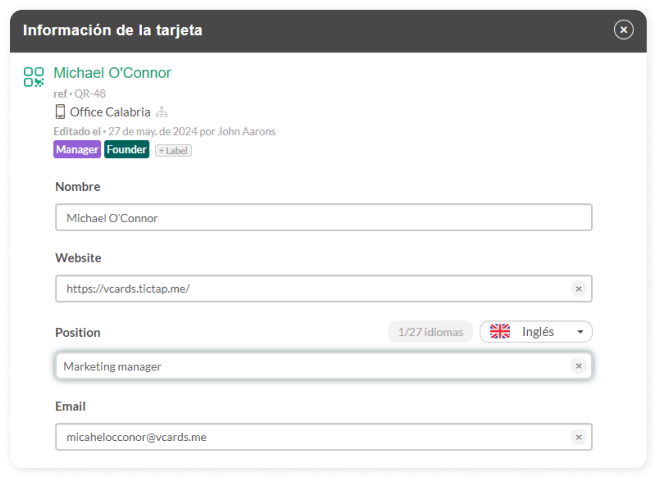
3. Now you can modify any field on the card, and when you click **Save**, it will be updated on the corresponding vcard   
       
    [![Info tarjeta.png](https://help.tictapcards.com/uploads/images/gallery/2024-06/scaled-1680-/BrrHu2qTYsDYxR6c-info-tarjeta.png)](https://help.tictapcards.com/uploads/images/gallery/2024-06/BrrHu2qTYsDYxR6c-info-tarjeta.png)
# Order more blank cards


<span class="cabezera">Here you can create cards without needing to add any information. You can add it later, whenever you need to. It’s important to fill in the details before printing the cards.</span>


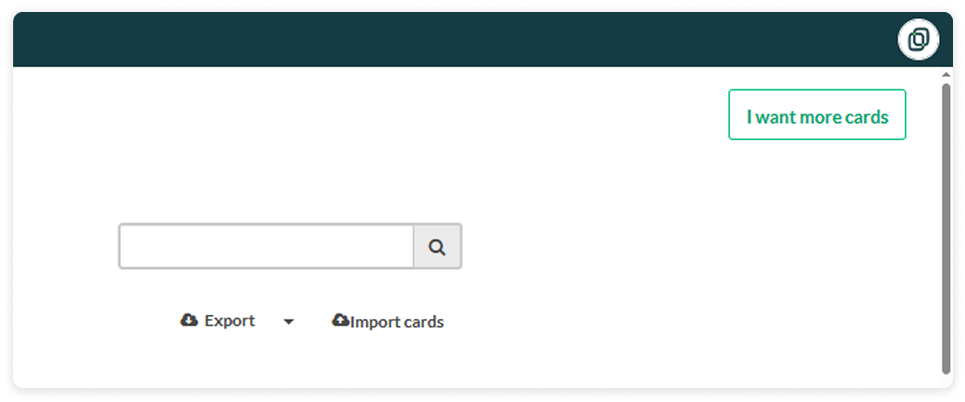
<span class="color">1.</span> From the Cards section, click the **I want more cards button**, you’ll find it in the top left corner:
<div class="step-container-small" id="bkmrk--4"> ![quiero-mas-tarjetas_EN.png](https://help.tictapcards.com/uploads/images/gallery/2025-04/scaled-1680-/aDHgUShf9LZBG1LE-quiero-mas-tarjetas-en.png)</div>  


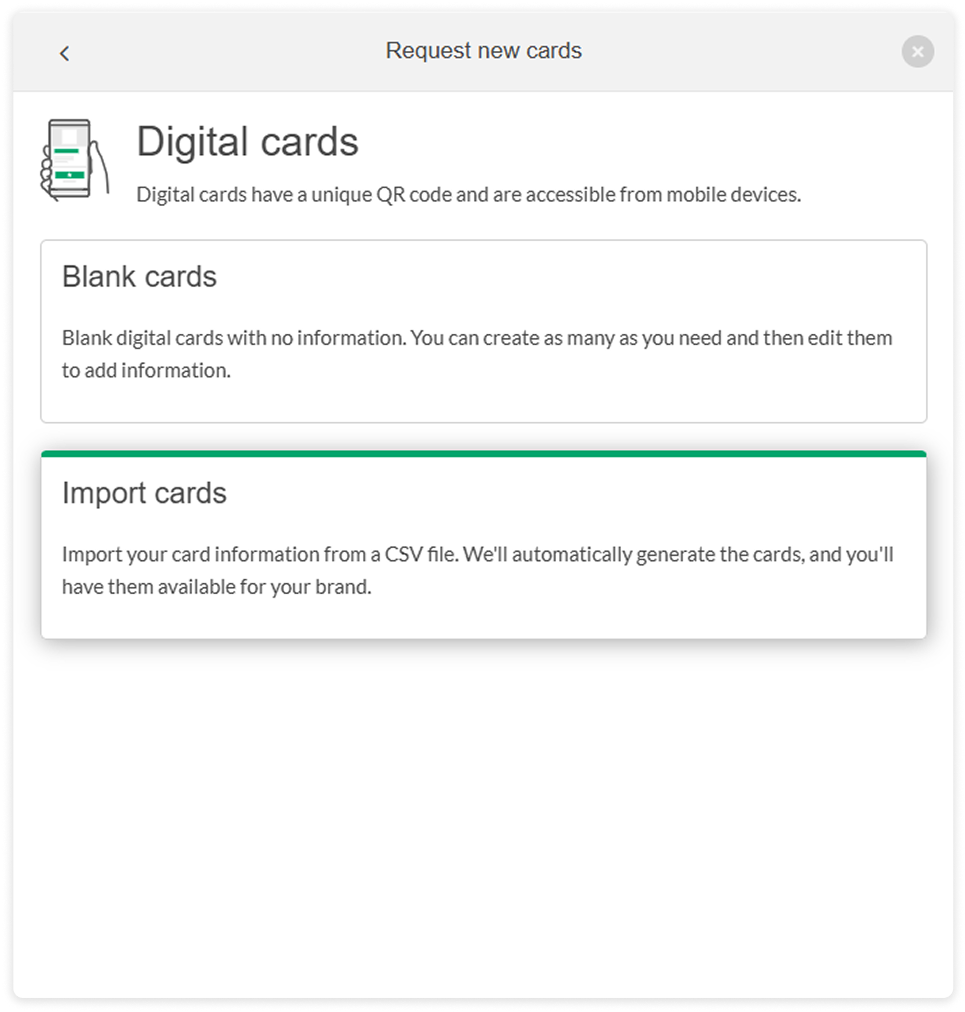
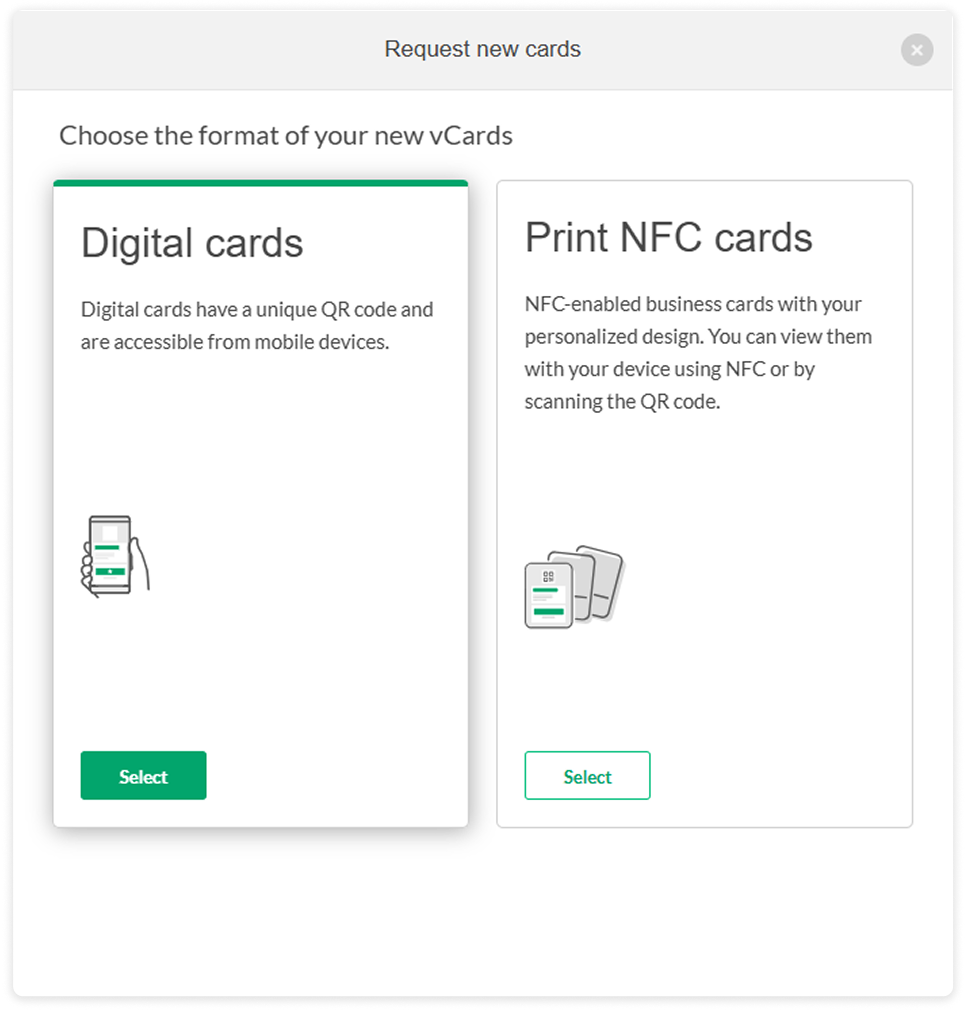
<div class="step-container-dividido" id="bkmrk-2.-the-following-pan"> ![panel-seleccion-tarjetas-digitales_EN.png](https://help.tictapcards.com/uploads/images/gallery/2025-04/scaled-1680-/0RXiKpPZTOzlMdPC-panel-seleccion-tarjetas-digitales-en.png)<div class="step-text"> <span class="color">2.</span> The following panel will open, and we’ll click on “Digital Cards”. </div></div>  
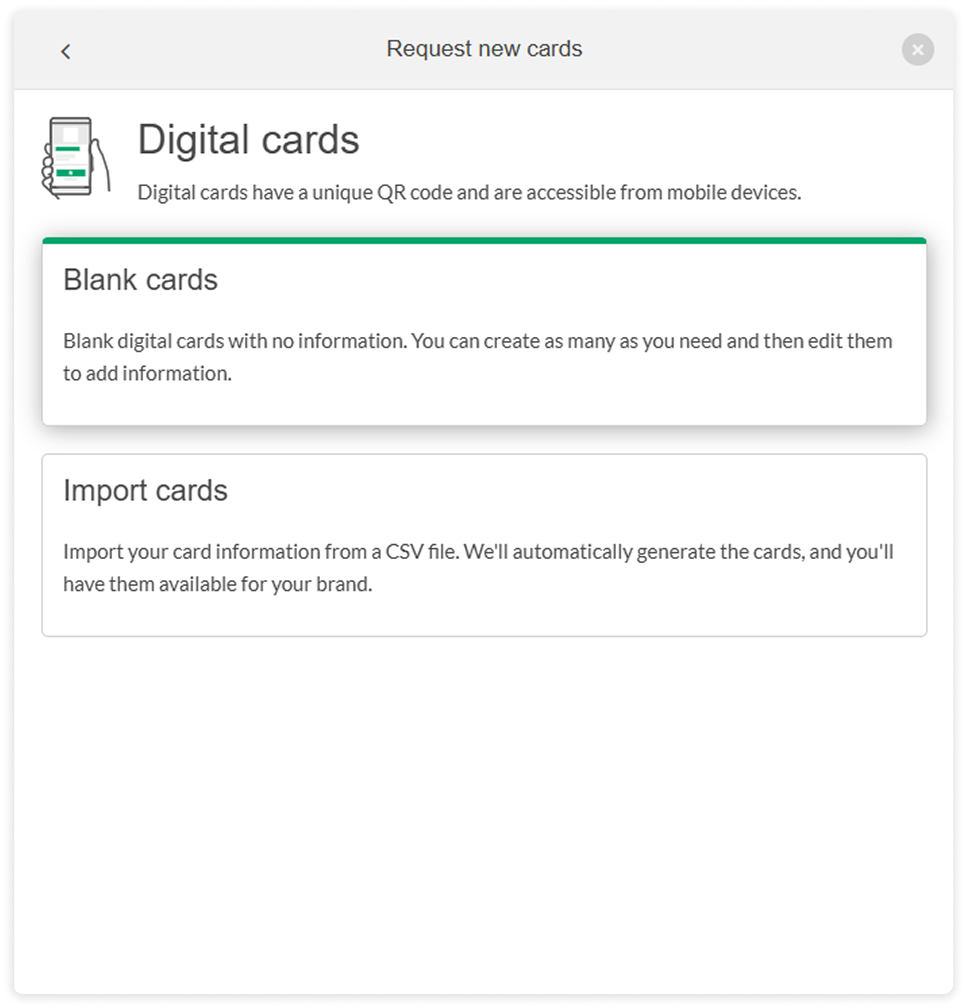
  
<div class="step-container-dividido" id="bkmrk-3.-blank-cards%3A-they"> ![panel-seleccion-tarjetas-digitales-blancox2.png](https://help.tictapcards.com/uploads/images/gallery/2025-04/scaled-1680-/yttCxi63SZ0UfRsg-image-1745507723211.png)<div class="step-text"> <span class="color">3.</span> **Blank cards:** They are created instantly, and you can edit the details after requesting the new cards. </div></div>  
  
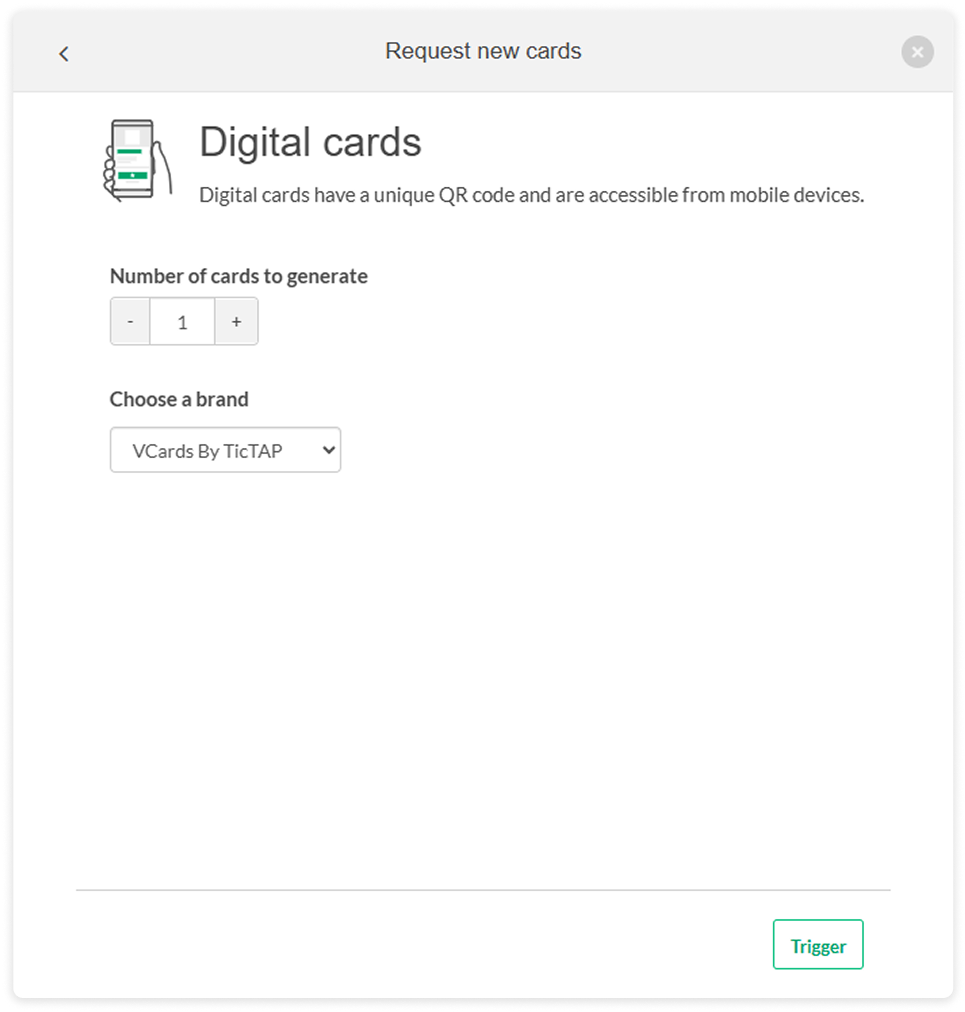
<span class="color">4.</span> Choose the **quantity and brand** of the new cards. Once you generate them, they’ll be ready in just a few seconds!

<div class="step-container" id="bkmrk--13"> ![panel-seleccion-digitales-cantidad-marcax2.png](https://help.tictapcards.com/uploads/images/gallery/2025-04/scaled-1680-/uLEfsGIqReXVoyb3-image-1745507761423.png)</div>  
  
<span class="color">5.</span> If you want to modify the data, <u class="link">[you can do it using this guide.](https://help.tictapcards.com/books/card-management/page/edit-the-text-fields-of-a-vcard)</u>


<style id="bkmrk-.link-%2Cu%2Ca%7B-color%3A-r">
    .link ,u,a{
    color: rgb(2, 165, 108);
  }
  .link u,a:hover{
    color: rgb(21, 59, 68);
  }
  .color{
    color: rgb(2, 165, 108);
    font-weight: 600;
    }
  .step-container {/*normal*/
    display: flex;
    align-items: center;
    justify-content: left;
    height: 580px; 
  }
  .step-container img {
    transition: width 0.3s ease;
    transform-origin: left top;
    width: 482px;
  }
    .step-container img:hover {
      width: 580px;   
  }
    .step-container-small {/*small*/
    display: flex;
    align-items: center;
    justify-content: left;
    height: 200px;
  }
  .step-container-small img {
    transition: width 0.3s ease;
    transform-origin: left top;
    width: 482px;
  }
    .step-container-small img:hover {
      width: 580px;   
  }
      .step-container-big {/*big*/
    display: flex;
    align-items: center;
    justify-content: left;
    height: 400px;
  }
  .step-container-big img {
    transition: width 0.3s ease;
    transform-origin: left top;
    width: 700px;
  }
    .step-container-big img:hover {
      width: 800px;   
  }
  .step-container-dividido {   /*dividido-dividido*/
    display: flex;
    align-items: center;
    justify-content: center;
    justify-content: space-between;
    margin: 20px auto;
    max-width: auto;
  }
  .step-container-dividido img {  
    height: 425px;
    transition: transform 0.3s;
  }
  .step-container-dividido img:hover {
    transform: scale(1.1);
  }
  .step-container-dividido:nth-child(even) {
    flex-direction: row-reverse;
  }
  .step-text {
    margin: 0 20px;
    max-width: 50%;
  }
</style>

# Create new cards using databases


<span class="cabezera" id="bkmrk-you-can-complete-all"> You can complete all the information using a database, use your own or download our template.</span>  
  
<span class="color">1.</span> From the **Cards section**, click the I **want more cards button**, you'll find it in the top left corner.

<div class="step-container-small" id="bkmrk--4"> ![quiero-mas-tarjetas_EN.png](https://help.tictapcards.com/uploads/images/gallery/2025-04/scaled-1680-/aDHgUShf9LZBG1LE-quiero-mas-tarjetas-en.png)</div>  
  
<div class="step-container-dividido" id="bkmrk-2.-the-following-pan"> ![panel-seleccion-tarjetas-digitales_EN.png](https://help.tictapcards.com/uploads/images/gallery/2025-04/scaled-1680-/0RXiKpPZTOzlMdPC-panel-seleccion-tarjetas-digitales-en.png)<div class="step-text"> <span class="color">2.</span> The following panel will open, and we will click on **"QR Digital Cards"** </div></div>  


<div class="step-container-dividido" id="bkmrk-3.-now-let%27s-import-"> ![panel-seleccion-digitales-importar-bd_EN.png](https://help.tictapcards.com/uploads/images/gallery/2025-04/scaled-1680-/o3Tjoe6XnJkt6vYe-panel-seleccion-digitales-importar-bd-en.png)<div class="step-text"> <span class="color">3.</span> Now let's **import** the cards from a **database.** </div></div>  


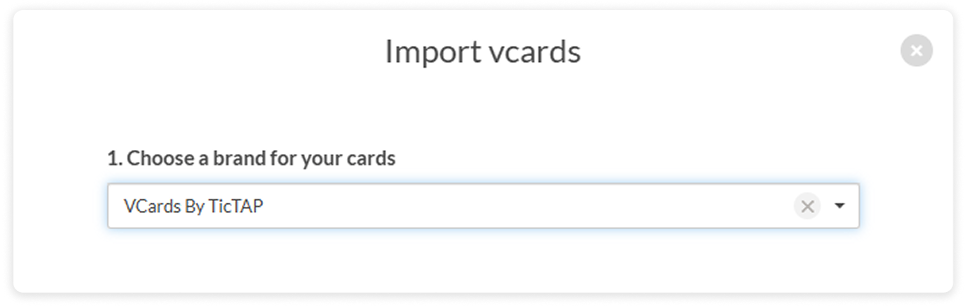
<span class="color">4.</span> The first step is to select **the brand** for the cards.

<div class="step-container-small" id="bkmrk--15"> ![panel-seleccion-digitales-bd-importar_EN.png](https://help.tictapcards.com/uploads/images/gallery/2025-04/scaled-1680-/G9oB4Q6encyd5Olz-panel-seleccion-digitales-bd-importar-en.png)</div>  
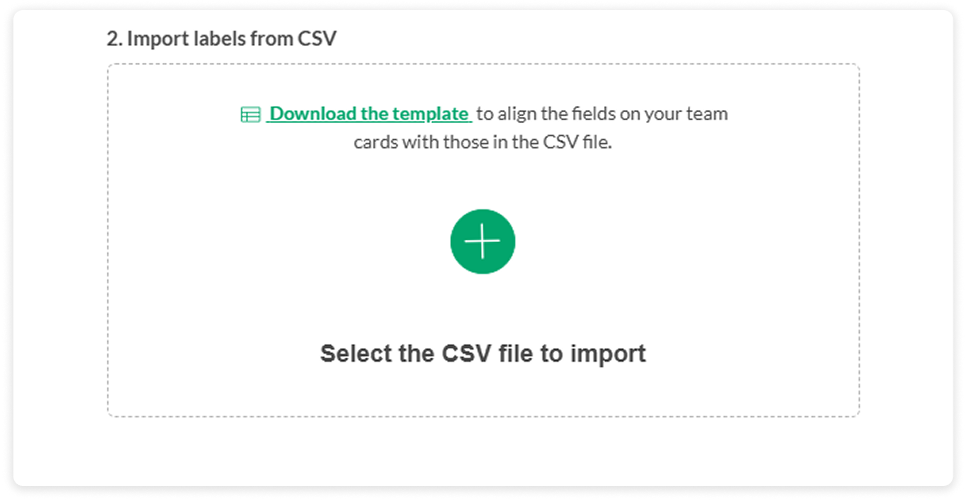
<span class="color">5.</span> We can also drag and drop or select the existing database from a folder.   
Keep in mind that the **format must be .CSV**

<div class="step-container" id="bkmrk--17" style="height:270px;"> ![panel-seleccion-digitales-bd-importar_EN.png](https://help.tictapcards.com/uploads/images/gallery/2025-04/scaled-1680-/x6d2huguF4luVTDd-image-1745506870116.png)</div>  
  
<span class="color">6.</span> If you don’t have a database, you can download our **template** and fill it in with your data.

<div class="step-container-small" id="bkmrk--20" style="height:100px;"> ![panel-descargar-plantilla-bdx2.png](https://help.tictapcards.com/uploads/images/gallery/2025-04/scaled-1680-/NGU0GLETMvnvWm90-image-1745506997588.png)</div>  
  
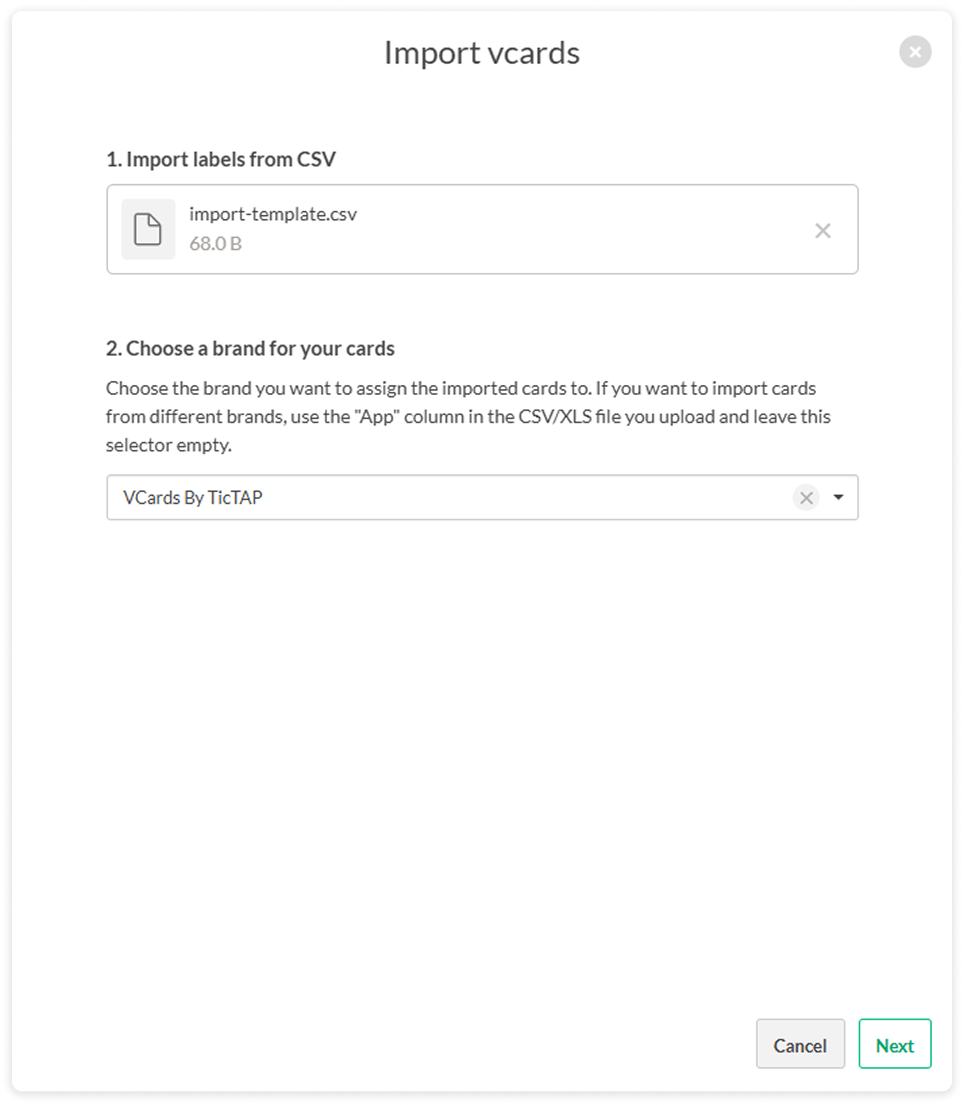
<span class="color">7.</span> We verify that the file and the brand are correct and proceed to the next step.

<div class="step-container" id="bkmrk--23"> ![[panel-digitales-bd-validacionx2.png](https://help.tictapcards.com/uploads/images/gallery/2025-05/scaled-1680-/ILSjUFXAJtEir8X5-image-1747058546272.png)</div>  
  
  
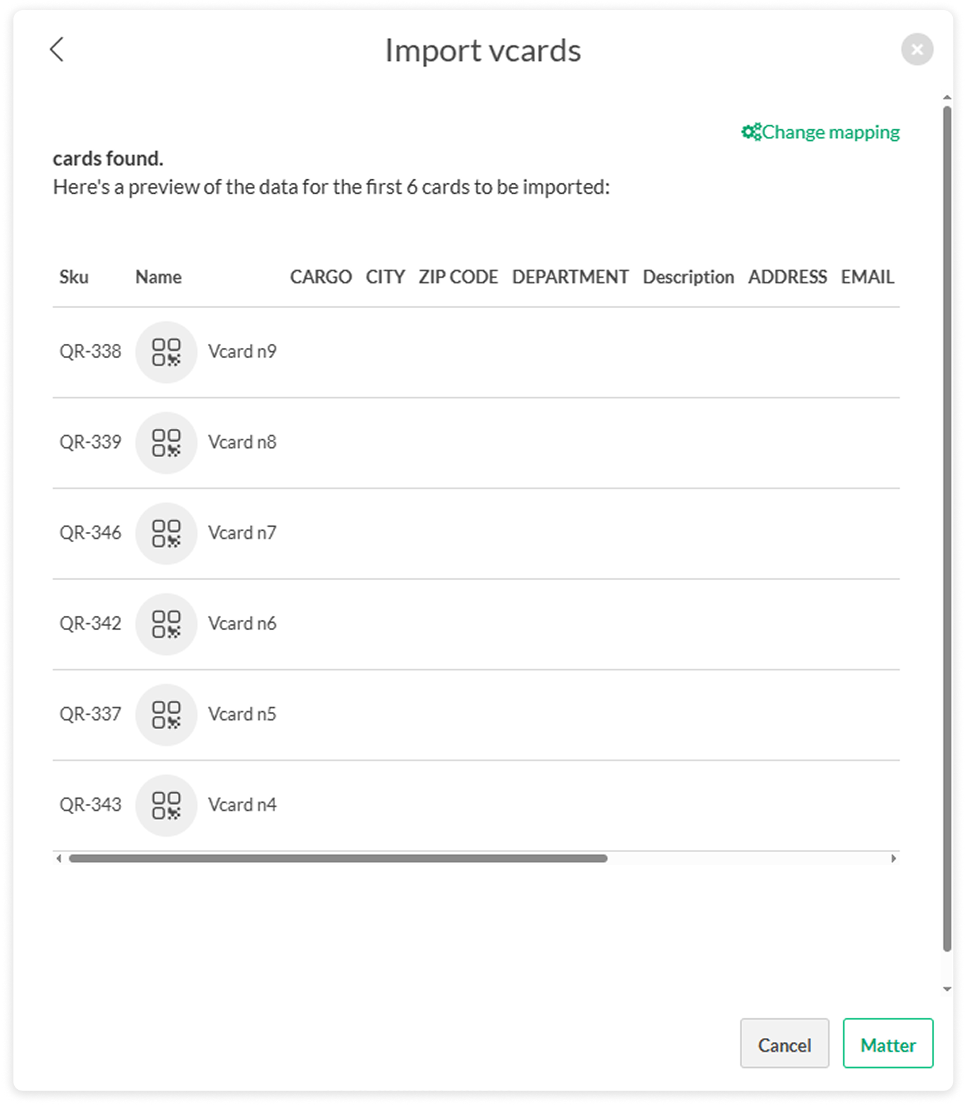
<span class="color">8.</span> Now let’s check if everything is correct with the **data preview and validation**, we don’t want any surprises!

<div class="step-container" id="bkmrk--27"> ![[panel-digitales-bd-validacionx2.png](https://help.tictapcards.com/uploads/images/gallery/2025-04/scaled-1680-/2jVxPTWcJ37OAQlT-image-1745507028808.png)</div>  
  
  
You're good to go!


<style id="bkmrk-.color%7B-color%3A-rgb%282">
  .color{
    color: rgb(2, 165, 108);
    font-weight: 600;
    }
  .step-container {/*normal*/
    display: flex;
    align-items: center;
    justify-content: left;
    height: 580px;
   /* position: relative;*/
    
  }
  .step-container img {
   /* position: absolute;*/
    transition: width 0.3s ease;
    transform-origin: left top;
    width: 482px;
  }
    .step-container img:hover {
      width: 580px;   
  }
    .step-container-small {/*small*/
    display: flex;
    align-items: center;
    justify-content: left;
    height: 200px;
  }
  .step-container-small img {
    transition: width 0.3s ease;
    transform-origin: left top;
    width: 482px;
  }
    .step-container-small img:hover {
      width: 580px;   
  }
      .step-container-big {/*big*/
    display: flex;
    align-items: center;
    justify-content: left;
    height: 400px;
  }
  .step-container-big img {
    transition: width 0.3s ease;
    transform-origin: left top;
    width: 700px;
  }
    .step-container-big img:hover {
      width: 800px;   
  }
  .step-container-dividido {   /*dividido-dividido*/
    display: flex;
    align-items: center;
    justify-content: center;
    justify-content: space-between;
    margin: 20px auto;
    max-width: auto;
  }
  .step-container-dividido img {  
    height: 425px;
    transition: transform 0.3s;
  }
  .step-container-dividido img:hover {
    transform: scale(1.1);
  }
  .step-container-dividido:nth-child(even) {
    flex-direction: row-reverse;
  }
  .step-text {
    margin: 0 20px;
    max-width: 50%;
  }
</style>

# Print NFC cards


Once you have your digital cards with all the information verified, you just need to follow these steps to print the vCards you need.   
  
<span class="color">1.</span> **From the Cards section**, click on the I **want more cards button** — you'll find it at the top right.

<div class="step-container-small" id="bkmrk--4"> ![quiero-mas-tarjetasx2.png](https://help.tictapcards.com/uploads/images/gallery/2025-04/scaled-1680-/aDHgUShf9LZBG1LE-quiero-mas-tarjetas-en.png)</div>  
  
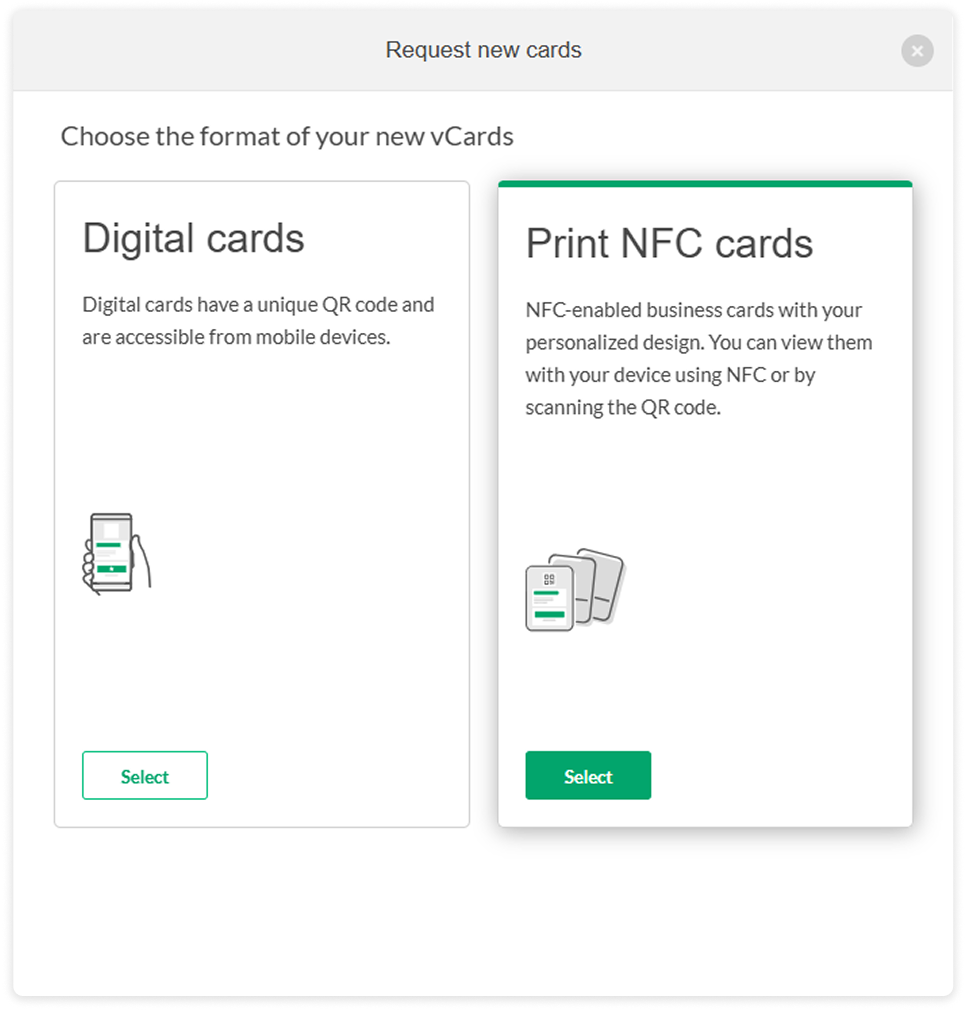
<span class="color">2.</span> The following panel will open, select **"Print NFC cards"**.

<div class="step-container" id="bkmrk--7"> ![[panel-seleccion-fisicasx2.png](https://help.tictapcards.com/uploads/images/gallery/2025-04/scaled-1680-/3Mw16EUFV9zcUawR-image-1745508488490.png)</div>  
  
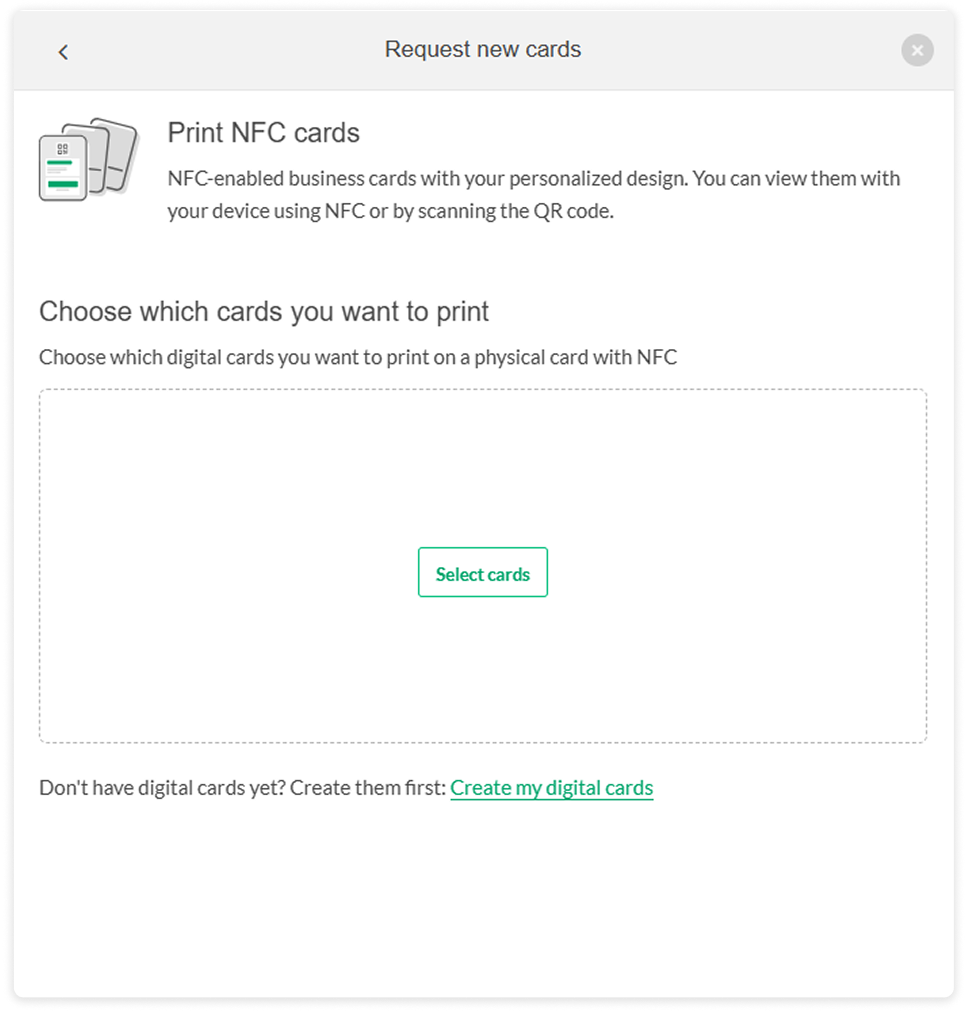
<span class="color">3.</span> Now let's print the existing cards by clicking the **"Select cards"** button.

<div class="step-container" id="bkmrk--10"> ![panel-seleccion-fisicas-sleccion-cardsx2.png](https://help.tictapcards.com/uploads/images/gallery/2025-04/scaled-1680-/UnigymkgJi7ITIXi-image-1745508519830.png)</div>  
  
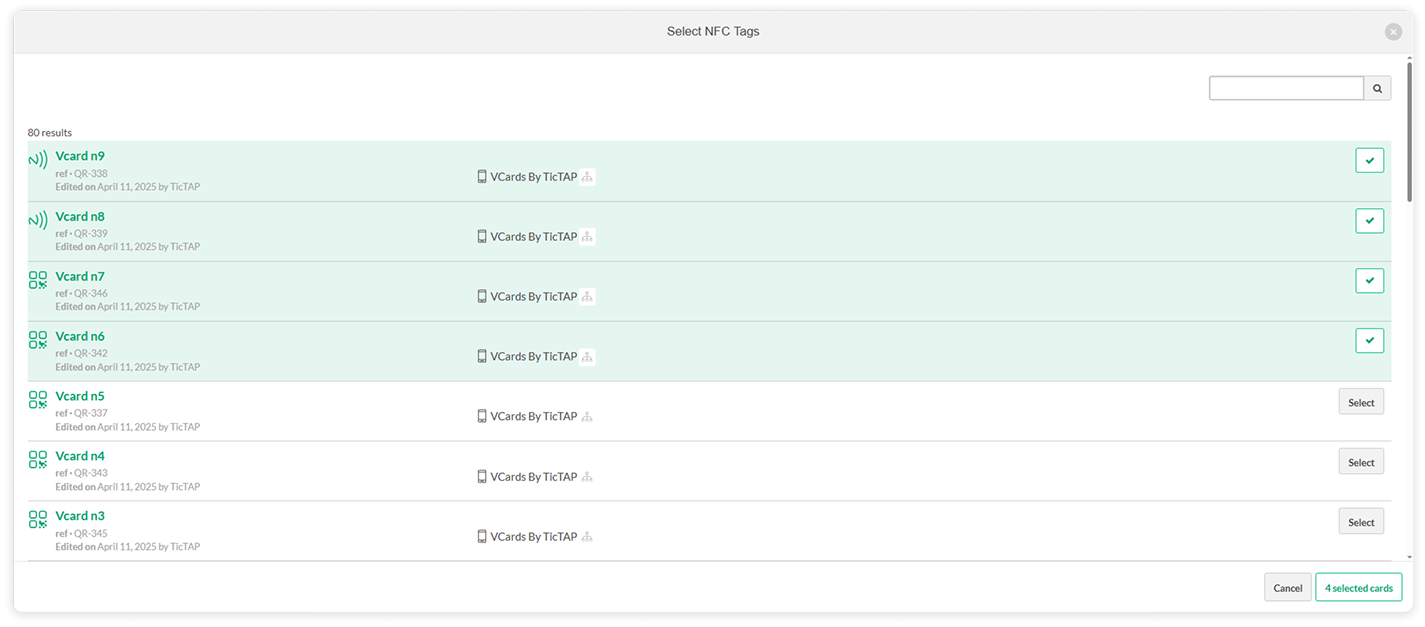
<span class="color">4.</span> Select the **digital cards you want to print**.

<div class="step-container-big" id="bkmrk--13"> ![panel-seleccion-fisicas-seleccion-fisicas-2x2.png](https://help.tictapcards.com/uploads/images/gallery/2025-04/scaled-1680-/pAEvFUEuGxM8UnOG-image-1745508554615.png)</div>  
  
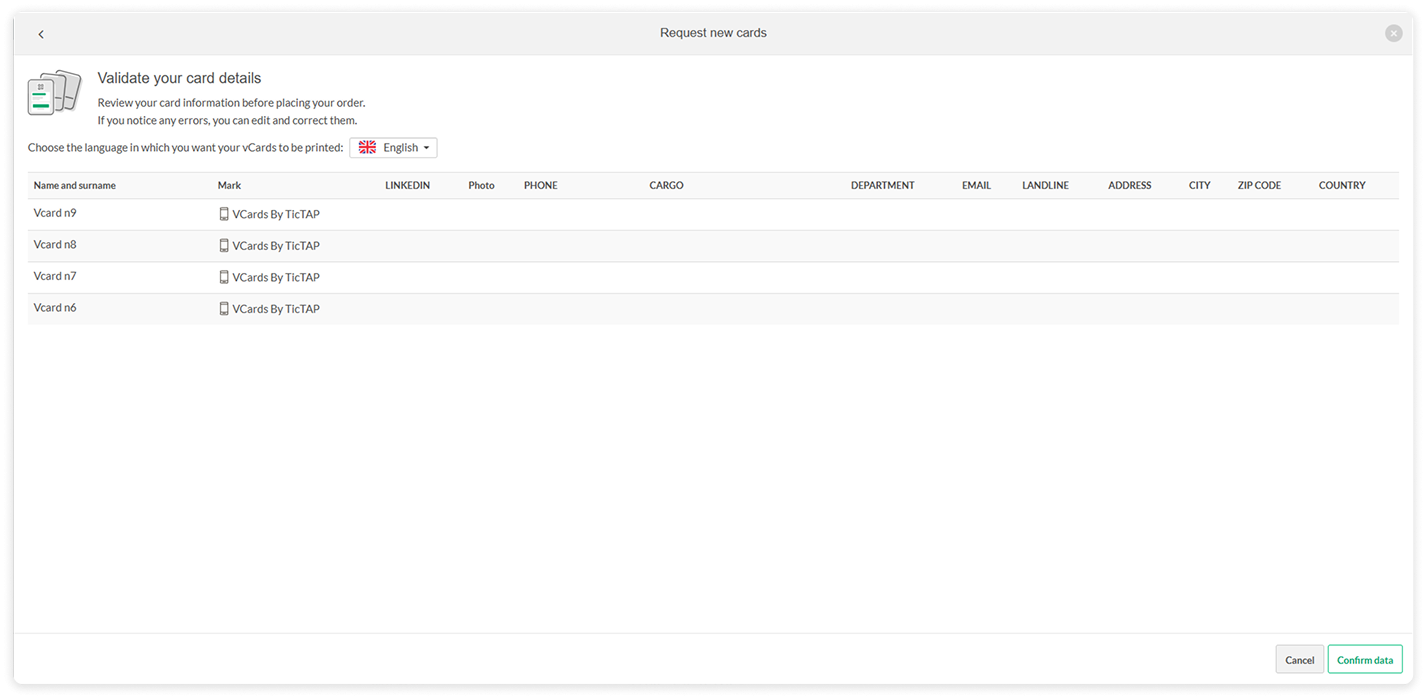
<span class="color">5.</span> Once we finish selecting, we will go to the **data preview** to verify the printing details. Take your time and **verify** that everything is correct, as **the data will be used on the physical cards**.

<div class="step-container-big" id="bkmrk--16"> ![panel-seleccion-fisicas-visualizacion-cardsx2.png](https://help.tictapcards.com/uploads/images/gallery/2025-04/scaled-1680-/BtWQ1hhFg0PnsWrQ-image-1745508576683.png)</div>  
  
<span class="color">6.</span> If you need to **modify** any data, you can go back to the **cards page** and make the changes there.   
<u class="link">[Guide to make changes to vCards](https://help.tictapcards.com/books/card-management/page/edit-the-text-fields-of-a-vcard)</u>

<div class="step-container-big" id="bkmrk--19"> ![panel-fisicas-confirmar-pedidox2.png](https://help.tictapcards.com/uploads/images/gallery/2025-04/scaled-1680-/TzhQpdAJ6lAnV91J-image-1745509145596-cards-en.png)</div>  
  
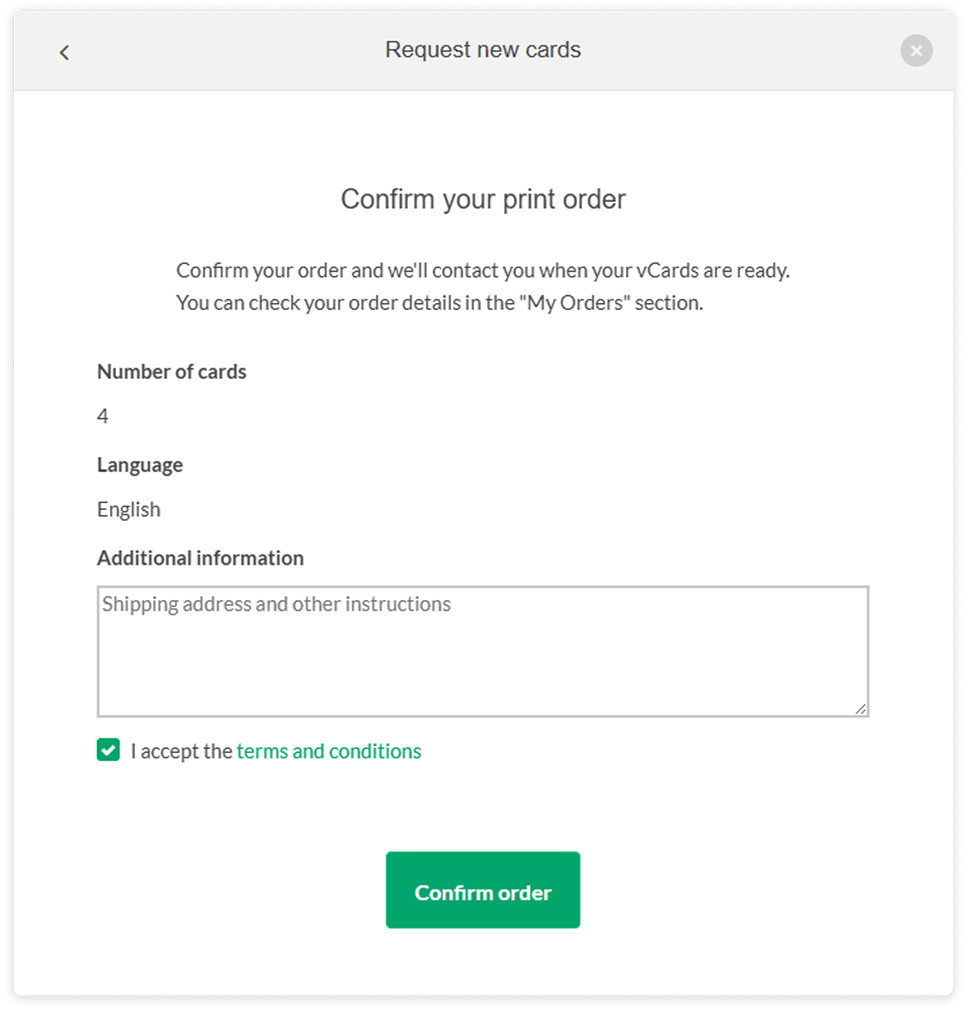
<span class="color">7.</span> If there is anything we **should be informed about**, don't hesitate! Send us whatever you need, such as the shipping address, in the **comments section**.

<div class="step-container" id="bkmrk--22"> ![panel-fisicas-confirmar-pedidox2.png](https://help.tictapcards.com/uploads/images/gallery/2025-04/scaled-1680-/man3441zIshdYtSI-image-1745509261337.png)</div>  
  
<span class="color">8.</span> Now that we have all the data ready for printing, all that's left is to **accept the terms and conditions** of the order and everything will be ready! ✨

<style id="bkmrk-.link-%2Cu%2Ca%7B-color%3A-r">
  .link ,u,a{
    color: rgb(2, 165, 108);
  }
  .link u,a:hover{
    color: rgb(21, 59, 68);
  }
  .color{
    color: rgb(2, 165, 108);
    font-weight: 600;
    }
  .step-container {/*normal*/
    display: flex;
    align-items: center;
    justify-content: left;
    height: 580px;
  }
  .step-container img {
    transition: width 0.3s ease;
    transform-origin: left top;
    width: 482px;
  }
  .step-container img:hover {
    width: 580px;   
  }
  .step-container-small {/*small*/
    display: flex;
    align-items: center;
    justify-content: left;
    height: 200px;
  }
  .step-container-small img {
    transition: width 0.3s ease;
    transform-origin: left top;
    width: 482px;
  }
  .step-container-small img:hover {
    width: 580px;   
  }
  .step-container-big {/*big*/
    display: flex;
    align-items: center;
    justify-content: left;
    height: 400px;
  }
  .step-container-big img {
    transition: width 0.3s ease;
    transform-origin: left top;
    width: 700px;
  }
  .step-container-big img:hover {
    width: 800px;   
  }
</style>

# Add labels to your vcards

**Adding labels to your cards** will help you classify and **organize them by departments** or areas, making them easier to distinguish and filter.

To create a label, follow these steps:

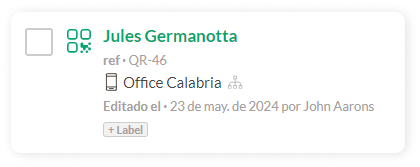
1. Access the **Cards** list from the left sidebar menu, and click on the *+ Label* button on the card where you want to add it.   
       
    [![Label.png](https://help.tictapcards.com/uploads/images/gallery/2024-06/scaled-1680-/vMVB3MqiAGxLTVZy-label.png)](https://help.tictapcards.com/uploads/images/gallery/2024-06/vMVB3MqiAGxLTVZy-label.png)
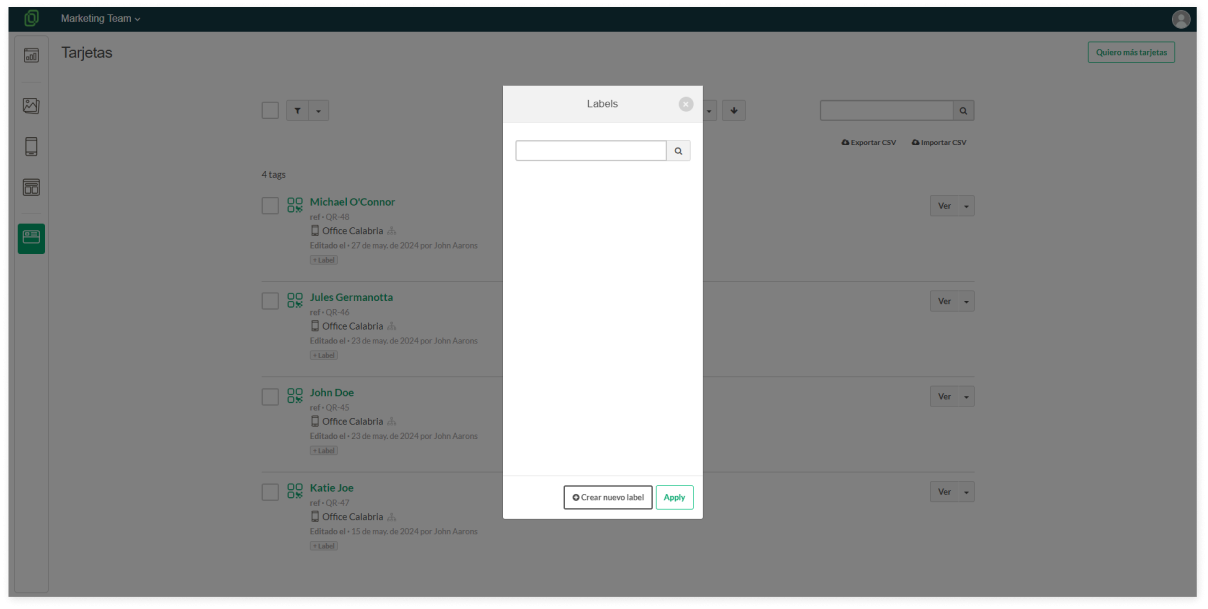
2. Click on **Create new label**.   
      
    [![Frame 23585 (2).png](https://help.tictapcards.com/uploads/images/gallery/2024-06/scaled-1680-/rsuaZbhCFtf6Hzpo-frame-23585-2.png)](https://help.tictapcards.com/uploads/images/gallery/2024-06/rsuaZbhCFtf6Hzpo-frame-23585-2.png)
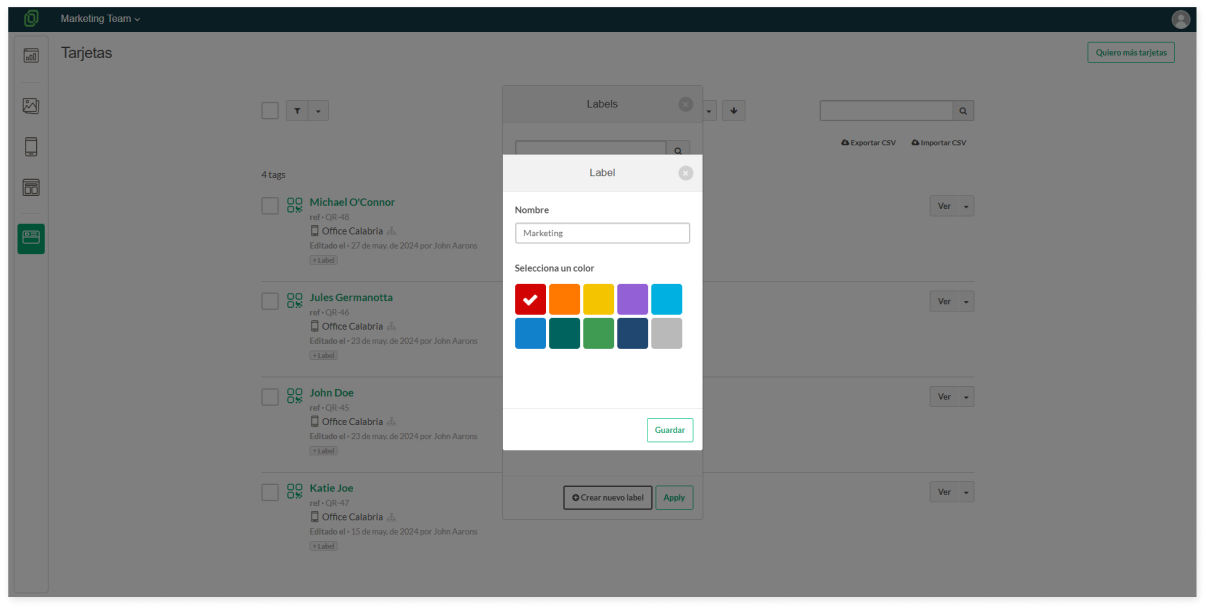
3. Name your label and choose its color.   
      
    [![Frame 23586 (2).png](https://help.tictapcards.com/uploads/images/gallery/2024-06/scaled-1680-/DcSCTqoSxQPRbeqi-frame-23586-2.png)](https://help.tictapcards.com/uploads/images/gallery/2024-06/DcSCTqoSxQPRbeqi-frame-23586-2.png)
4. All set! You can now see the new label assigned to the card.

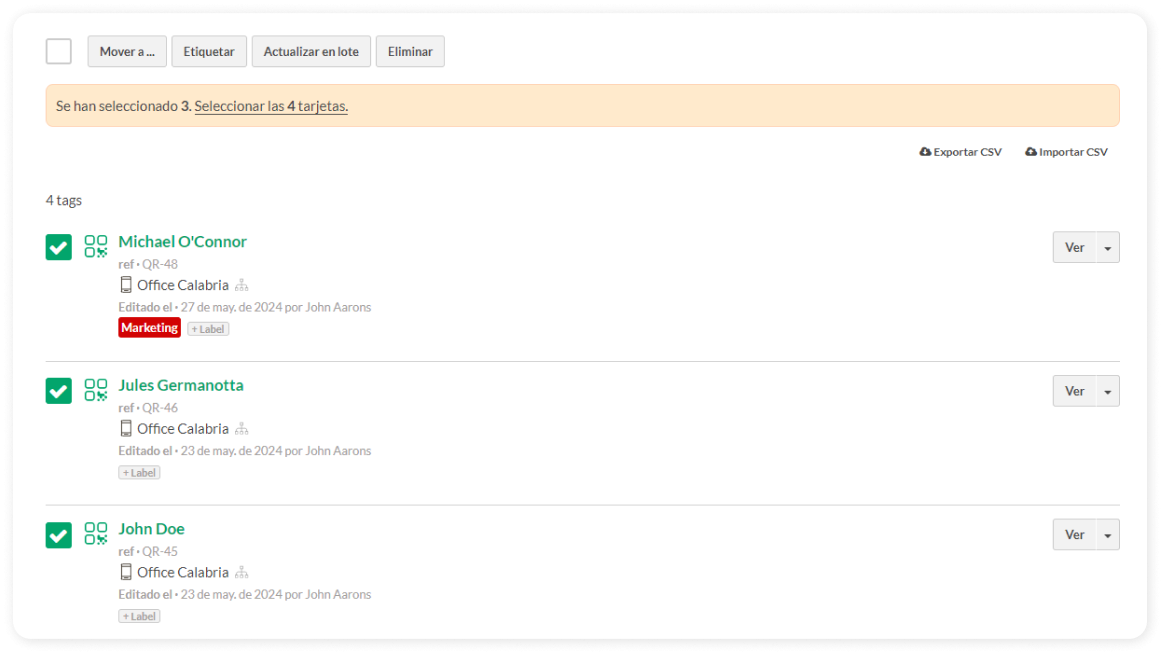
☝️ **Batch Tagging**: If you want to assign the same label to multiple cards at once, select all the cards you want and click on the "Tag" button located at the top of the page.

[![Etiquetar en lote (2).png](https://help.tictapcards.com/uploads/images/gallery/2024-06/scaled-1680-/hhvmDZKmGrhDtcig-etiquetar-en-lote-2.png)](https://help.tictapcards.com/uploads/images/gallery/2024-06/hhvmDZKmGrhDtcig-etiquetar-en-lote-2.png)