# Add labels to your vcards
**Adding labels to your cards** will help you classify and **organize them by departments** or areas, making them easier to distinguish and filter.
To create a label, follow these steps:
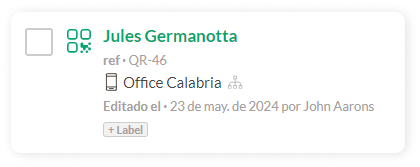
1. Access the **Cards** list from the left sidebar menu, and click on the *+ Label* button on the card where you want to add it.
[](https://help.tictapcards.com/uploads/images/gallery/2024-06/vMVB3MqiAGxLTVZy-label.png)
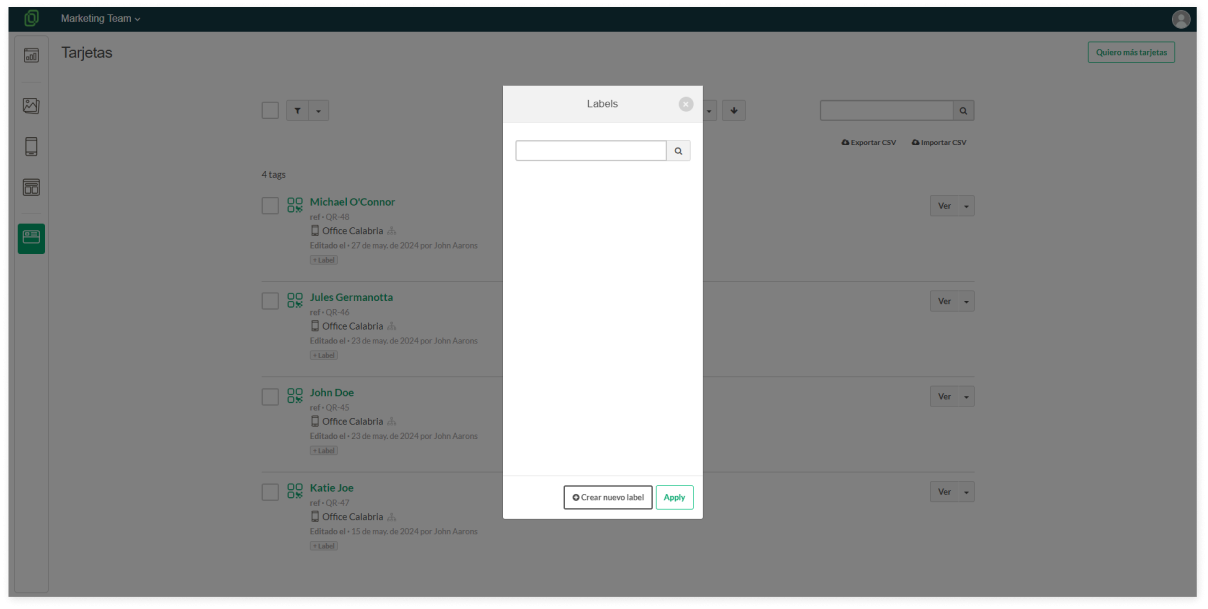
2. Click on **Create new label**.
[](https://help.tictapcards.com/uploads/images/gallery/2024-06/rsuaZbhCFtf6Hzpo-frame-23585-2.png)
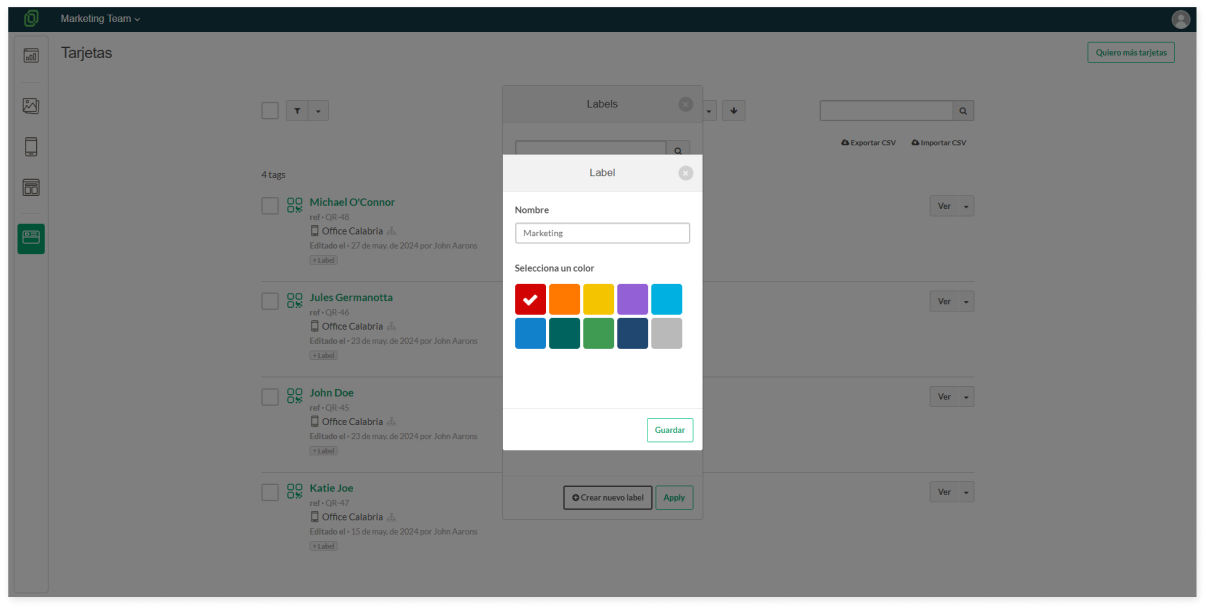
3. Name your label and choose its color.
[](https://help.tictapcards.com/uploads/images/gallery/2024-06/DcSCTqoSxQPRbeqi-frame-23586-2.png)
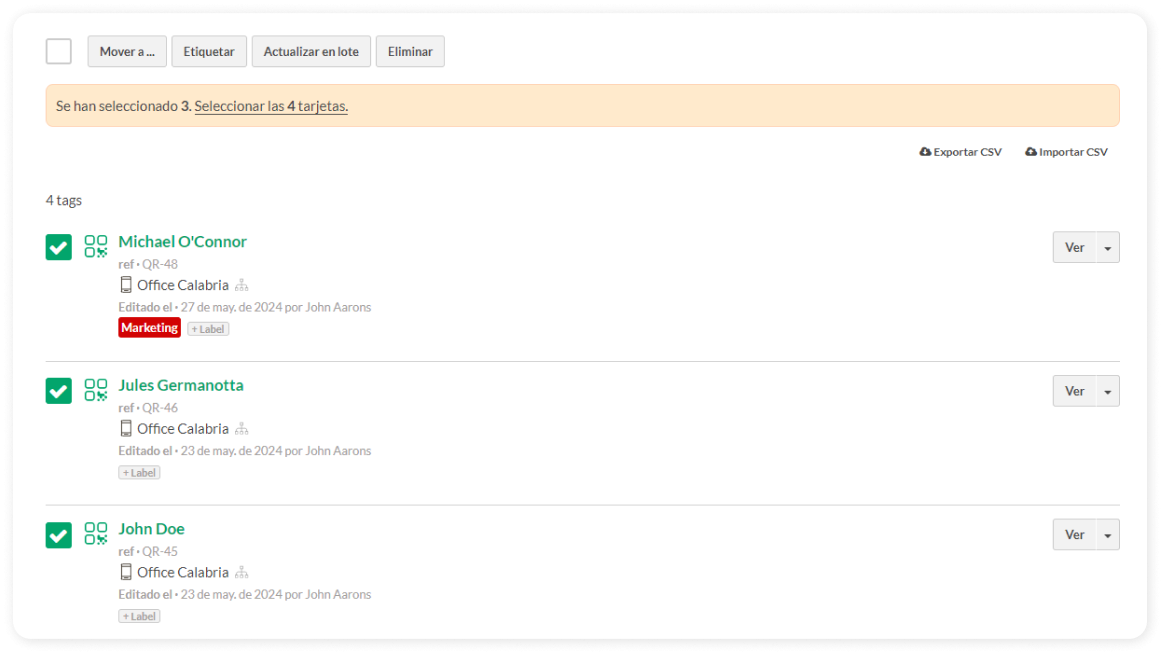
4. All set! You can now see the new label assigned to the card.
☝️ **Batch Tagging**: If you want to assign the same label to multiple cards at once, select all the cards you want and click on the "Tag" button located at the top of the page.
[](https://help.tictapcards.com/uploads/images/gallery/2024-06/hhvmDZKmGrhDtcig-etiquetar-en-lote-2.png)