# Edit the text fields of a vcard
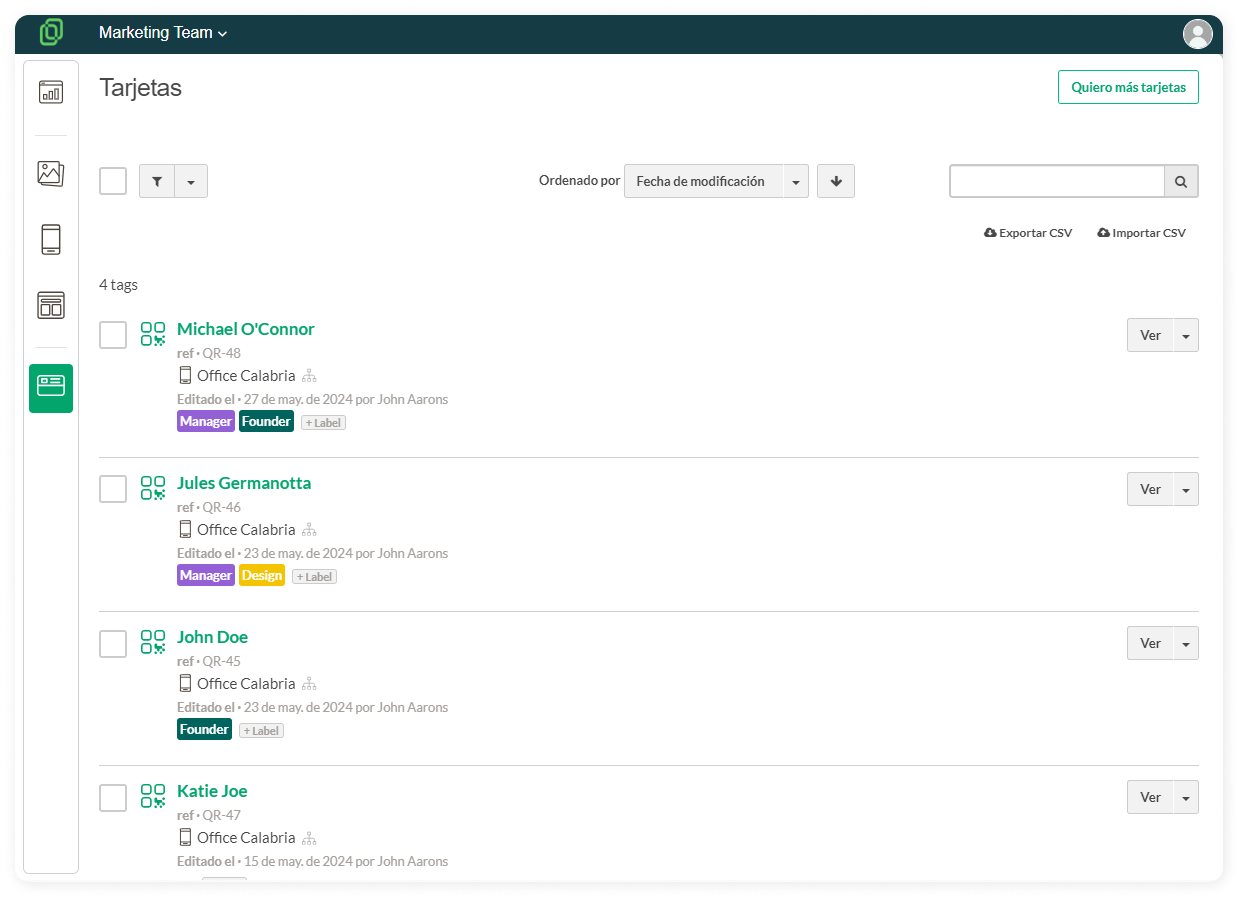
The **Cards** section in the left sidebar menu is where you can view, edit, and manage all your team's cards. To edit card details, such as **changing the position** or a **mobile number**, follow these steps:
1. Locate the name of the person you want from the **card list**
[](https://help.tictapcards.com/uploads/images/gallery/2024-06/KX5lLQgsv7YtLzRY-frame-23647.png)
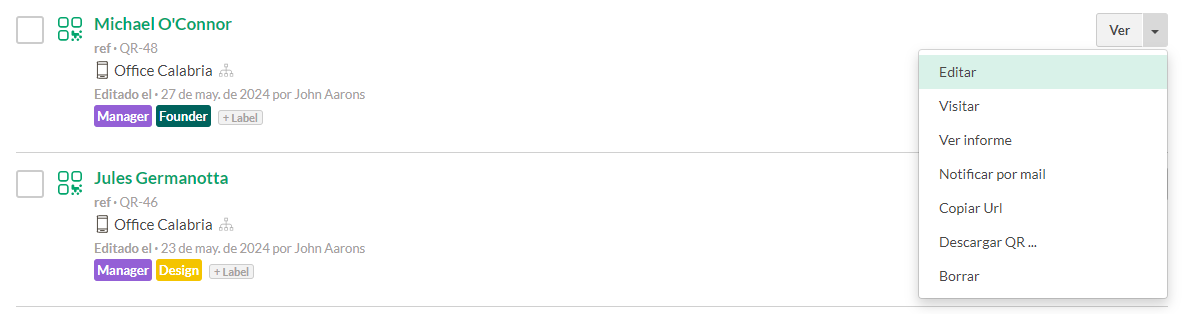
3. In the dropdown menu on the right-hand side, click on **Edit**
[](https://help.tictapcards.com/uploads/images/gallery/2024-06/eUe37uA1JTIwL7d5-image-2.png)
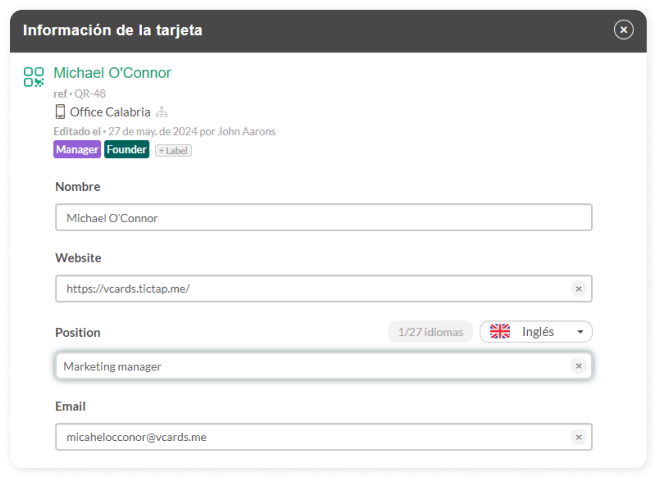
4. Now you can modify any field on the card, and when you click **Save**, it will be updated on the corresponding vcard
[](https://help.tictapcards.com/uploads/images/gallery/2024-06/BrrHu2qTYsDYxR6c-info-tarjeta.png)