# Create a new menu section
In this article, you will learn how to create a new section in the menu and link it not only to a template but also to a URL, phone number, file, and more. Linking your templates to the menu of your app is the easiest way to access them quickly when opening your vcard.
To create a new section in the menu, follow these steps:
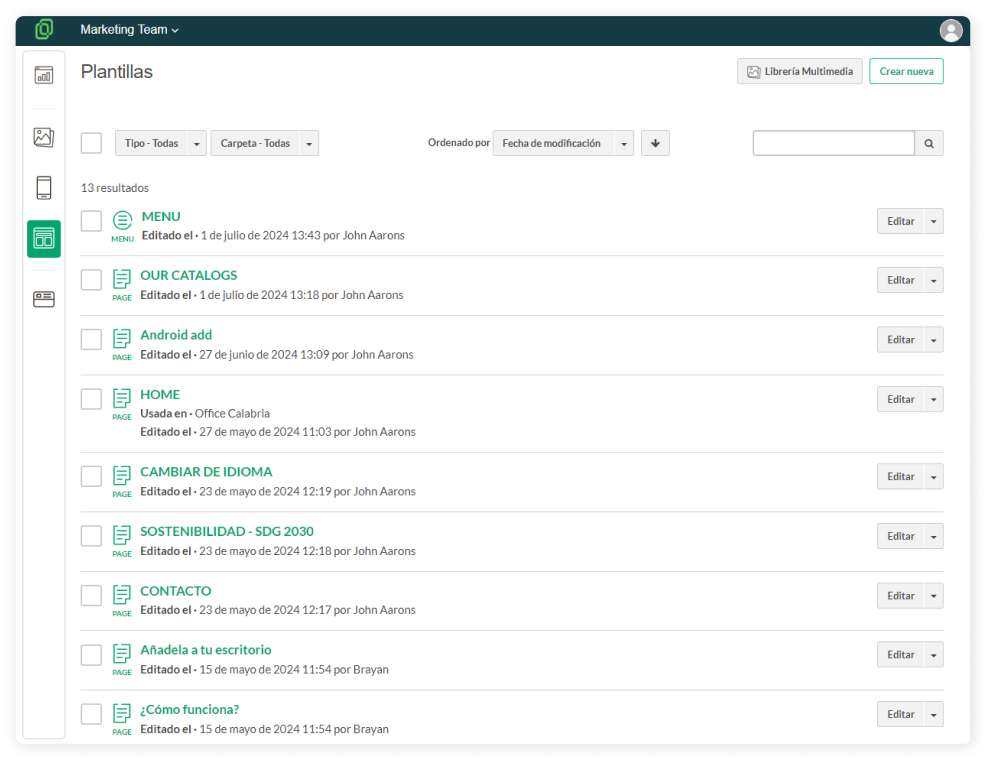
1. Open the **menu of your App** from the Templates section.
[](https://help.tictapcards.com/uploads/images/gallery/2024-07/ZsVLpvSDs7Q56fjx-frame-23648-1.png)
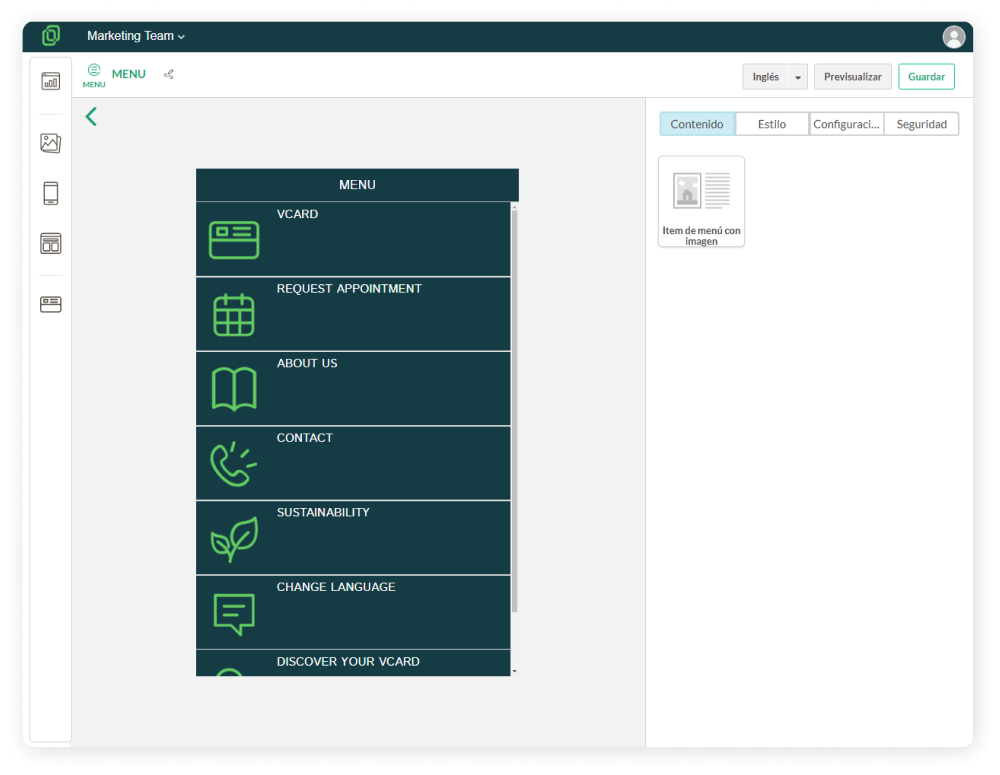
2. Once inside the **Template Editor**, you will see your App's menu. From here, you can delete, edit, duplicate existing menu items, or create a new one. To create a new one, drag the **Menu Item with Image** block from the right side of the screen into the **Content block**.
[](https://help.tictapcards.com/uploads/images/gallery/2024-07/M99eQqNv6qdSH5Lv-menu-1.png)
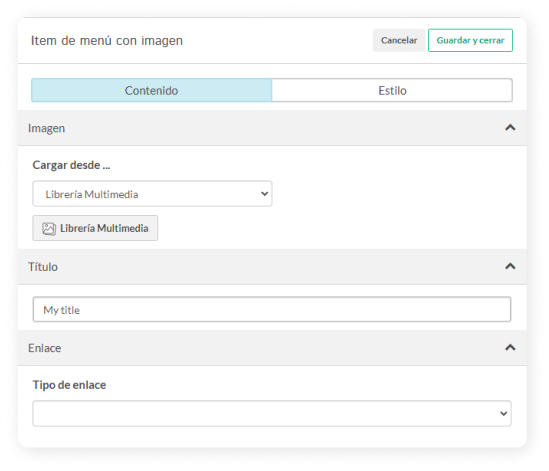
3. Now you have a new menu item. Configuring its content is straightforward:
[](https://help.tictapcards.com/uploads/images/gallery/2024-07/VCdIDiQNSXwpIgZM-contenido-1.png)
- **Image**: Add an icon for your menu item.
☝️ Remember, for optimal display, the icon should have a square size with a transparent background.
- **Title**: Add the title of the menu item.
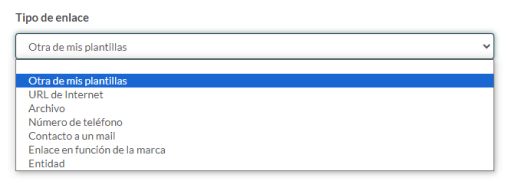
- **Link**: Choose what to link this menu item to, i.e., the screen that will open when clicking on this menu section. You have the following linking options: URL, File, Phone Number, Email Contact, Link based on the brand, and Entity.
[](https://help.tictapcards.com/uploads/images/gallery/2024-07/TmXUA3LzCzaK9x7x-tipo-de-enlace-1.png)
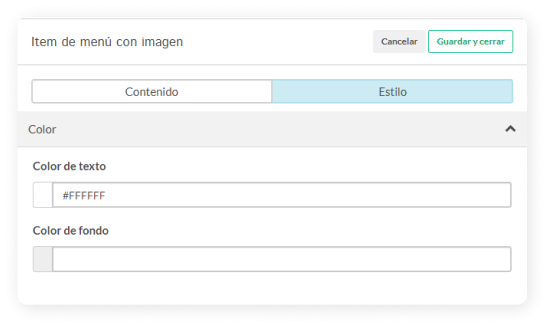
4. Now that you have created the item, **configure its layout** in the Style section, where you can set the background color and text color.
[](https://help.tictapcards.com/uploads/images/gallery/2024-07/ip9uaDFmHQq2JTJa-estilo-3.png)
You're all set! You have successfully created and configured a menu item.